Email Integration
Sending Invoices Directly from Flanceflow
Deliver professional PDF invoices, automated payment links, and customized client messages directly from Flanceflow with delivery tracking.
Rather than downloading a PDF invoice to your computer, opening your email app, attaching the file, and writing a cover note manually, Flanceflow lets you dispatch polished, branded invoices to clients in one click. Invoices arrive with an interactive pay button, a PDF attachment, and your personalized message.
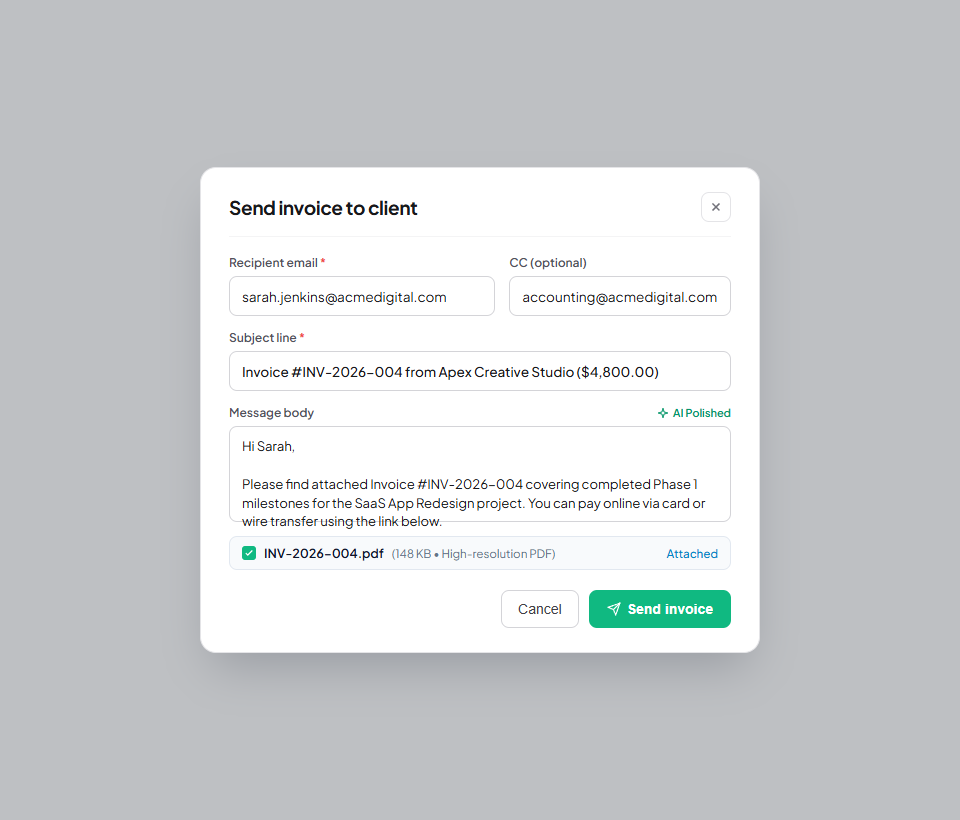
How to dispatch an invoice to a client
- Navigate to "Invoices" from the main sidebar and click on the invoice you want to deliver.
- Review the invoice items, client details, and total calculation in the preview screen.
- Click the "Send to Client" button located in the top-right action bar.
- In the delivery modal, verify the client’s recipient email address. You can add CC recipients (e.g., client accounting or project managers).
- Choose whether to use the default AI-optimized cover template or write a customized subject line and personal body message.
- Ensure the "Attach PDF Invoice" checkbox is ticked.
- Click "Send Invoice Now". Flanceflow dispatches the email through your connected provider and immediately updates the invoice status to "Sent".
Invoice email components
| Component | Default format | Customizable? | Client experience |
|---|---|---|---|
| Subject Line | Invoice [Number] from [Your Studio Name] | Yes | Clear, searchable, and professional in their inbox. |
| Cover Message | Polite summary with amount and due date | Yes | Warm and courteous note acknowledging completed milestones. |
| Pay Online Button | Direct encrypted link to client portal | Automatic | Client clicks to view the invoice and use the configured payment method. |
| PDF Attachment | High-resolution PDF copy of invoice | Automatic | Client accounting team can save directly to company archives. |
Best practices for invoice delivery
- Personal touch: Add a 1-sentence recap of what was achieved during this billing cycle (e.g., "Thanks for your feedback on the mobile prototypes this week!").
- CC client accounts team: Add `billing@clientcompany.com` or `accounts@clientcompany.com` as CC so payments don’t get stuck in approval queues.
- Send confirmation: Flanceflow gives you a "Copy Public Link" option right after sending so you can also share the link in Slack, Teams, or WhatsApp.
Was this guide helpful?
👍 Yes
👎 No