Time Tracking
Manual Time Entry
Add missed hours, bulk-log meeting durations, and adjust past time records with accurate client tags and notes.
Sometimes you forget to start a live timer before diving into a deep design session or taking an emergency client call. Flanceflow lets you log past work manually in seconds, complete with dates, durations, and billing rates.
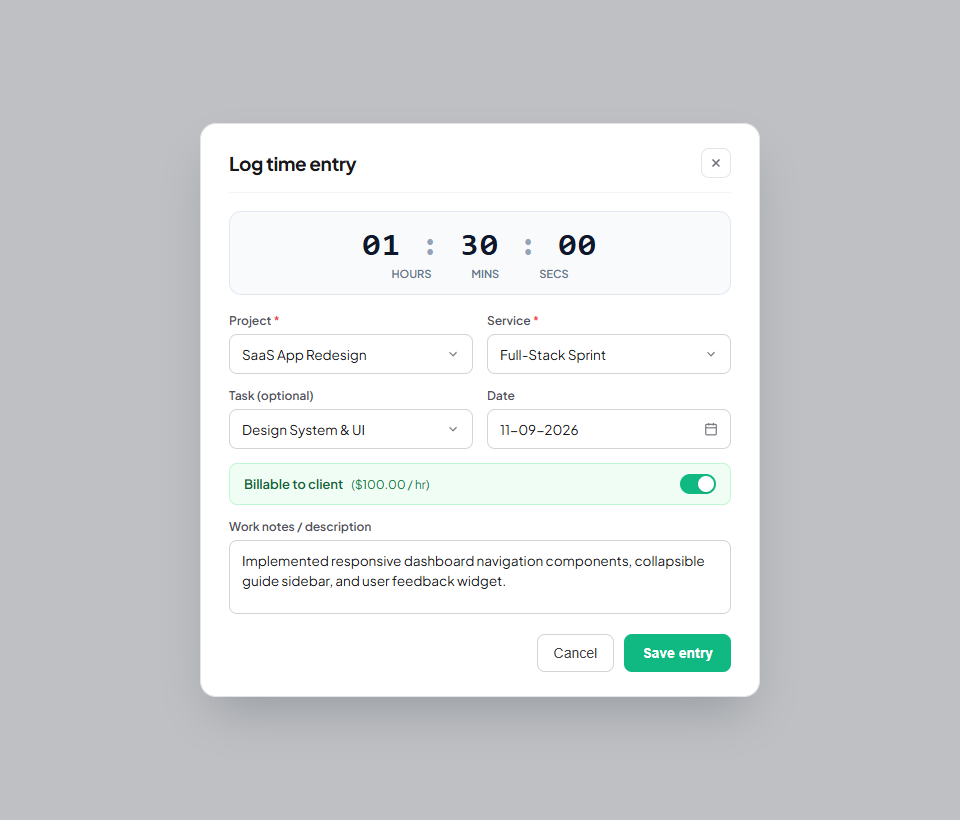
How to log time manually
- Click "Time Tracking" in the left workspace sidebar to open the master timesheet view.
- Click the "+ Log Time" button in the upper right corner.
- Select the target Project and Client from the dropdown menus.
- Select the Date when the work was completed.
- Enter the Duration (you can type "1h 30m", "1.5", or "90" and Flanceflow will parse it automatically).
- Add a clear work description (e.g. "Security patch update and SSL certificate renewal").
- Confirm the billable hourly rate (prefilled from your project service agreement).
- Click "Save Entry". The hours will be added to your project totals and marked ready for invoicing.
Supported duration input formats
| What you type | Parsed duration | Decimal hours | Billing calculation @ $100/hr |
|---|---|---|---|
| 1h 30m | 1 hour, 30 minutes | 1.50 hrs | $150.00 |
| 45m | 45 minutes | 0.75 hrs | $75.00 |
| 2.25 | 2 hours, 15 minutes | 2.25 hrs | $225.00 |
| 120 | 2 hours (120 mins) | 2.00 hrs | $200.00 |
Timesheet best practices
- End-of-day review: Spend 2 minutes at 5 PM reviewing your daily timesheet to ensure all client calls and revisions were accounted for.
- Detailed line notes: Clients are 70% less likely to dispute hourly invoices when each entry includes a clear, specific description of what was achieved.
- Editing logged entries: Click the pencil icon on any unbilled entry to adjust duration or fix typos before generating an invoice.
Was this guide helpful?
👍 Yes
👎 No