Documentation & Tutorials
Flanceflow User Guide
The complete, step-by-step operating guide to Flanceflow. Master workspace onboarding, client CRM relationships, dual-currency services, project delivery, and automated invoice dispatches.
Essential Guides & Quick Help
Most Requested Walkthroughs & Setup FAQs
Getting Started & Workspace
-
Creating Your Workspace & Studio Branding
Personalize your freelance business name, choose your primary currency (USD or INR), add your studio logo, and configure invoice details in under five minutes.
-
Choosing Your Primary Currency (USD/INR)
Set up dual currency handling in Flanceflow so you can seamlessly calculate your dashboard metrics in USD or INR while billing global clients in their local currency.
-
Inviting Teammates & Setting Roles
Collaborate with subcontractors, virtual assistants, and partners while keeping your financial earnings and private client rates strictly confidential.
-
Understanding Role Permissions (Owner/Admin/Member/Viewer)
A deep-dive reference guide into Flanceflow’s four security authorization levels and how data boundaries protect your studio finances.
-
Customizing Colors & Dark Mode
Switch between sleek Dark Mode and high-contrast Light Mode, and fine-tune your workspace color theme to match your creative studio aesthetic.
-
Switching Between Multiple Workspaces
Manage multiple creative businesses, agencies, or independent freelance brands from a single Flanceflow login with isolated client rosters and financials.
-
Workspace Settings Overview
A complete tour of the Flanceflow Settings console, including general studio identity, branding preferences, team access, and payment integrations.
Clients & Relationships
-
Adding & Managing Client Profiles
Organize client contacts, company names, tax details, and preferred billing currencies in one unified, searchable freelance client roster.
-
Client Status Pipeline (Lead/Active/VIP/Completed/On Hold/Archived)
Classify your freelance relationships using status stages from initial discovery lead to high-value VIP and archived accounts.
-
Logging Calls, Meetings & Contact Touchpoints
Keep track of discovery calls, Zoom meetings, email discussions, and critical scope decisions directly inside the client timeline.
-
Tracking Client Relationship Health & Follow-ups
Monitor relationship scores based on invoice turnaround, recent touchpoints, and follow-up frequency to prevent client churn.
-
Viewing Client Payment History & Receivables
Track lifetime billings, outstanding balances, overdue receipts, and payment method habits across all projects for a specific client.
Services & Pricing
-
Creating Reusable Service Packages
Build a catalog of standardized service offerings with preset pricing, descriptions, and deliverables to quote projects and draft invoices in seconds.
-
Fixed Price vs Hourly Rate vs Monthly Retainer Templates
Compare the three major freelance pricing models in Flanceflow and learn how to set up project templates that maximize your earnings.
-
Dual Currency Services (Quoting USD vs INR)
Quote domestic Indian clients in Rupees (₹) and international overseas clients in US Dollars ($) from the exact same reusable service catalog.
-
Editing & Archiving Services
Update pricing tiers, retire legacy offerings without breaking historical invoices, and organize your freelance catalog.
Projects & Delivery
-
Creating a Project Workspace
Set up organized client projects with deliverable scopes, budgets, deadlines, and milestone trackers in under two minutes.
-
Kanban Board & the Six Status Columns
Master Flanceflow’s visual delivery pipeline using the six standardized project columns from Backlog to Completed and Cancelled.
-
Setting Milestones & Deadlines
Structure complex projects with sequenced delivery milestones, firm deadlines, and tied billing deposits to prevent scope drift.
-
Project Progress Calculation
Understand how Flanceflow calculates weighted project completion percentages across tasks, milestones, and deliverable sign-offs.
-
Managing Tasks & Task Lists
Create actionable tasks, assign sub-checklists, attach reference links, and delegate work to subcontractors with ease.
-
Task vs Note Mode in Project Updates
Learn when to create an actionable deliverable task versus logging a contextual studio note or client preference.
-
Setting Reminders (Date-Triggered Notifications)
Configure automated in-app and email reminder alerts for upcoming deadlines, client check-ins, and invoice follow-ups.
Client Portal & Files
-
Sharing a Public Client Portal Link
Generate secure, token-protected client portal links where clients can review deliverables, leave revision feedback, and view project timelines without creating an account.
-
What Clients Can/Can't See in the Portal
A definitive privacy guide explaining the exact data boundary between your internal workspace and what is exposed to clients in the public portal.
-
Uploading & Organizing Project Files
Upload design assets, documentation, and source archives with automatic virus checks, organized folders, and high-speed global CDN delivery.
-
File Version Control & Revision History
Manage iterative design and document revisions without cluttering your folders with files named "final_v2_really_final.pdf".
-
Marking Files Visible to Client
Control exactly which deliverables, mockups, and invoices are shared with clients and which remain private studio drafts.
Time Tracking
-
Starting & Stopping Timers
Track billable hours with precision using Flanceflow’s persistent topbar timer, linked project scopes, and background clock synchronizer.
-
Manual Time Entry
Add missed hours, bulk-log meeting durations, and adjust past time records with accurate client tags and notes.
-
Filtering & Reviewing Logged Hours
Audit unbilled hours, review contractor timesheets, and generate detailed time reports across projects and date ranges.
-
Converting Tracked Time into Invoices
Transform unbilled hourly logs into a detailed, professional client invoice in two clicks with automatic line item consolidation.
Invoicing
-
Creating an Invoice
Draft, itemize, and issue client-ready tax invoices with automatic numbering, tax calculations, dual currency conversion, and direct payment links.
-
Adding Line Items, Taxes & Discounts
Configure multi-tax calculations (GST, VAT, Sales Tax), export zero-rated rules, itemized discounts, and line-item scopes.
-
Custom Branding on Invoices
Personalize invoice visual identity with your studio logo, custom accent colors, custom payment instructions, and tailored footer policies.
-
Generating & Downloading Invoice PDFs
Generate crisp, vector-sharp PDF invoices with embedded fonts, official receipts, and print-ready page layouts.
-
Sharing Public Invoice Links
Send interactive web invoice links where clients can review line items, download PDFs, and click to pay online with zero attachment friction.
-
Invoice Verification Flow
A step-by-step quality control checklist to review tax compliance, currency codes, bank details, and scopes before issuing client invoices.
-
Editing vs Voiding Sent Invoices
Understand when to safely edit a draft invoice versus voiding a finalized tax invoice to maintain a clean, audit-compliant accounting ledger.
Payments & Cash Flow
-
Recording a Payment Manually
Record bank wires, UPI transfers, cash deposits, and stripe transactions to balance invoices, issue receipts, and update cash flow metrics.
-
Collected, Pending, Overdue: How to Track Freelance Cash Flow
Master collected, pending, and overdue buckets to eliminate late payments, track freelance cash flow in real time, and protect your take-home revenue.
-
Currency Conversion in Payment Records
How Flanceflow handles multi-currency transactions, bank exchange rates, and foreign remittance reconciliation between USD and INR.
-
Cash Flow Dashboard Overview
A visual walkthrough of the Flanceflow financial dashboard, including monthly income trends, forecast receivables, and client revenue concentration.
-
Follow-up Alerts for Overdue Invoices
Automate gentle payment reminders and follow-up email drafts for overdue accounts without feeling awkward or aggressive.
Billing & Subscription
-
Choosing a Plan (Starter/Pro/Premium)
Compare Flanceflow’s three subscription tiers to find the right balance of active projects, collaborator seats, cloud storage, and FlowAI capabilities.
-
Feature Differences by Plan
A granular feature breakdown between Starter, Pro, and Premium tiers, highlighting limits, advanced automations, and AI tools.
-
Upgrading, Downgrading & Billing Cycle
Switch between monthly and annual billing, upgrade mid-cycle with prorated credit, or downgrade plans seamlessly.
-
Adding Team Members (Addon Pricing)
Scale your collaborator seats, understand addon pricing structures, and manage contractor seat allocations.
-
Managing Your Subscription Payment Method
Update your Paddle payment method, manage auto-renewal, and prevent billing interruptions.
-
Applying Promo Offers & Bonus Extensions
Redeem promotional discount codes, referral bonuses, and seasonal upgrade extensions to save on your Flanceflow subscription.
-
Viewing Your Flanceflow Subscription Invoices
Download official tax receipts and VAT/GST invoices for your Flanceflow software subscription for your business expense write-offs.
FlowAI & Ask AI
-
What FlowAI Can Do
Discover how Flanceflow’s specialized AI assistant analyzes your studio cash flow, drafts client emails, suggests project pricing, and automates freelance operations.
-
Asking FlowAI About Clients, Projects & Revenue
Query your studio database in plain English to extract financial insights, project bottleneck audits, and client payment trends.
-
Getting Freelancing Advice from FlowAI
Use FlowAI as an experienced business mentor to navigate client scope creep, handle difficult contract negotiations, and craft value-based proposals.
-
FlowAI vs Ask AI (Plan Differences)
Understand the differences between basic Ask AI discovery prompts on Starter plans versus full workspace context FlowAI on Pro and Premium tiers.
Email Integration
-
Connecting Gmail via OAuth
Connect your Google Workspace or Gmail account securely with 1-click OAuth to send client invoices and project notifications directly from your own professional address.
-
Setting Up Custom SMTP
Configure any custom domain email provider—including Zoho Mail, Fastmail, Outlook 365, AWS SES, or custom cPanel mailboxes—using secure SMTP credentials.
-
Sending Invoices Directly from Flanceflow
Deliver professional PDF invoices, automated payment links, and customized client messages directly from Flanceflow with delivery tracking.
-
Troubleshooting Email Delivery Issues
Diagnose and resolve common delivery problems including spam filters, bounced messages, SMTP authentication timeouts, and SPF/DKIM/DMARC DNS records.
Built-in Freelance Tools
-
Pricing Calculator
Calculate your ideal hourly rate, day rate, and project quote based on your target annual income, business overhead, non-billable hours, and profit goals.
-
WhatsApp Reply Generator
Generate polished, boundary-firm instant messaging replies for prospective client inquiries, payment follow-ups, price haggling, and weekend messages.
Account & Data
-
Updating Business Details & Tax ID
Keep your registered legal entity name, GSTIN / VAT / EIN / Tax ID number, official physical address, and contact details accurate across all client invoices and contracts.
-
Exporting Your Data
Download a complete, portable JSON backup of your client roster, invoice histories, received payments, services, and project tasks.
-
Deleting a Workspace
Learn how to permanently delete a workspace from Settings > General, understand the 2-workspace safety requirement, and review purged records.
-
Deleting Your Account
Request complete Flanceflow user account deletion via Ask AI, understand the 15-day recovery window, and learn what happens to subscriptions and data.
-
Data Privacy & Security Overview
Review Flanceflow’s security infrastructure, end-to-end TLS encryption, Firestore multi-tenant security rules, and zero-model-training privacy guarantees.
Troubleshooting & FAQ
-
Common Login Issues
Quickly resolve authentication roadblocks including forgotten passwords, blocked Google OAuth popups, expired verification tokens, and browser caching conflicts.
-
Why Isn’t My Invoice Currency Converting Correctly?
Diagnose exchange rate caching, client-specific currency locks, dual currency overrides, and payment gateway settlement discrepancies.
-
Reminder Notifications Not Arriving
Fix missing automated invoice payment reminders, project task deadline alerts, client portal revision notifications, and browser push permissions.
-
Dark Mode Display Issues
Resolve theme flickering, low-contrast text readability, custom logo background boxes, and browser system preference sync issues.
-
Contacting Support
How to reach Flanceflow’s dedicated customer support team, report bugs, request new freelance features, and get fast technical assistance.
Featured Quick-Start Guide
Creating Your Workspace & Studio Branding
Personalize your freelance business name, choose your primary currency (USD or INR), add your studio logo, and configure invoice details in under five minutes.
Welcome to Flanceflow! Your workspace is your studio’s central command hub. Taking five minutes to set up your business details upfront ensures every invoice, estimate, proposal, and client portal automatically displays your professional branding and legal details.
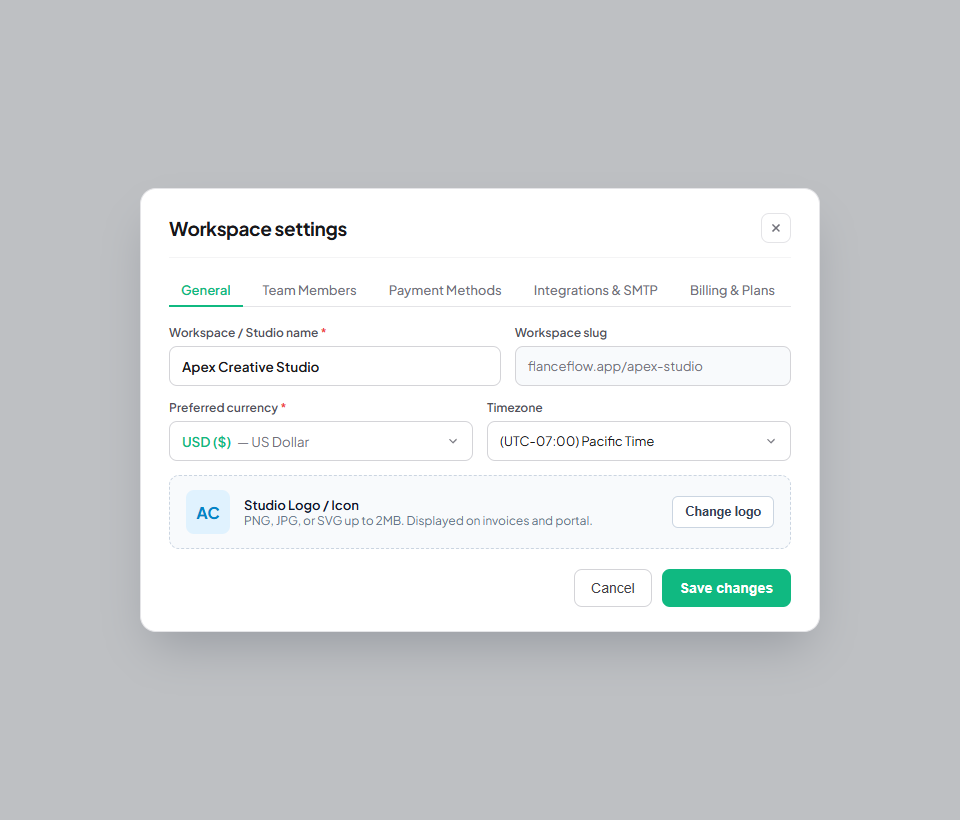
Quick setup steps
- Open Settings by clicking the gear icon in the bottom-left workspace sidebar navigation.
- Under General Settings, enter your Workspace Name (for example, "Apex Design Studio" or your own personal brand name).
- Choose your Primary Currency (USD or INR). This determines the default currency shown across your earnings dashboard, monthly revenue cards, and standard service rate calculations.
- Upload your studio logo or avatar image (a high-resolution square PNG, WebP, or SVG with a transparent background looks best on client deliverables and PDF invoices).
- Add your registered business address, contact phone number, and tax identification number (such as GSTIN, VAT, or EIN if applicable).
- Select your default invoice header accent color from the palette to match your visual studio identity.
- Click "Save Workspace" to lock in your settings and immediately apply them across your account.
Branding options & invoice impact
| Branding element | Default format | Where it appears | Design recommendations |
|---|---|---|---|
| Workspace Name | Your Account Name | Top left sidebar, client email notifications, invoice header | Keep it concise and recognizable to your clients. |
| Primary Currency | USD ($) | Dashboard revenue metrics, default service templates, cash flow analytics | Choose the currency in which you calculate your core annual earnings. |
| Studio Logo | Flanceflow Monogram | Top-left of all PDF invoices, client portal banner, email receipts | Use 400x400px transparent PNG or SVG for crisp rendering. |
| Header Accent Color | #0f172a (Slate) | Invoice banner stripe, portal primary buttons, highlighted totals | Choose your brand’s primary or secondary color palette hex. |
| Tax ID / Registration | None (Optional) | Invoice metadata block beneath seller address | Enter GSTIN, VAT, or EIN for formal tax invoices. |
Best practices for studio setup
- Dual currency versatility: Even if your main studio dashboard is set to USD or INR, you can quote and bill international clients in either currency seamlessly on a per-project basis.
- Updating details later: You can update your business address or phone number anytime in Settings. Future invoices will use your new details, while past finalized invoices remain untouched for audit accuracy.
- Separate creative ventures: If you run multiple distinct freelance businesses (for example, web development and photography), you can create and switch between multiple workspaces without needing separate accounts.
- Mobile preview: Check your invoice logo display on mobile screens before sending your first bill to ensure text and icon scales remain sharp and well-aligned.