Getting Started & Workspace
Inviting Teammates & Setting Roles
Collaborate with subcontractors, virtual assistants, and partners while keeping your financial earnings and private client rates strictly confidential.
As your freelance practice grows, you will often collaborate with subcontractors, copywriters, developers, and project managers. Flanceflow provides robust team invitations so your collaborators can manage tasks and deliver work without ever seeing your private bank balance or client fees.
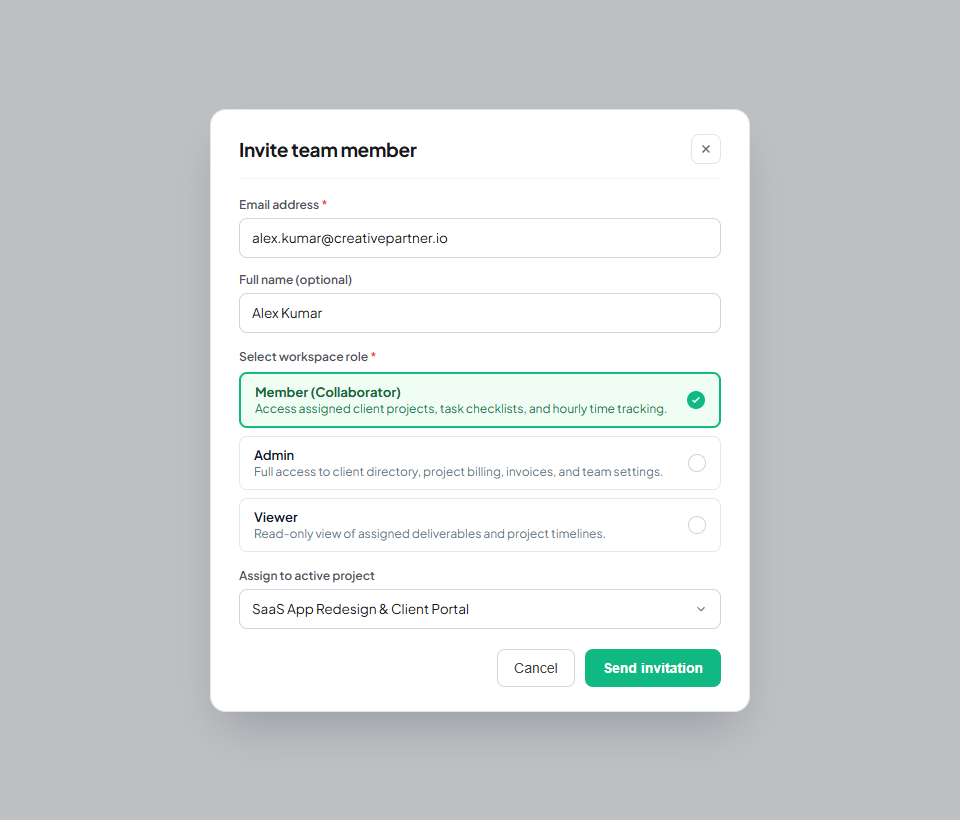
How to invite a team member
- Click Settings in the bottom-left sidebar, then select the "Manage Workspace" section.
- Click the "+ Invite Member" button in the upper-right corner of the team panel.
- Enter your collaborator’s email address.
- Select their permission role: Member, Admin, or Viewer.
- Click "Send Invitation". Flanceflow will dispatch a secure 7-day invitation link to their inbox.
- Once your teammate clicks the link, they can sign in or create their password to join your workspace immediately.
Workspace team roles at a glance
| Role | What they can access | Financial visibility | Typical team member |
|---|---|---|---|
| Owner | Full control over all workspace settings, billing plans, and data exports | Full access to all revenue, bank methods, and invoices | You (the workspace creator) |
| Admin | Can manage clients, create projects, assign tasks, and draft invoices | Can view invoices; cannot change subscription or delete workspace | Studio managers or trusted business partners |
| Member | Can view assigned projects, move Kanban tasks, log hours, and upload files | Zero financial access; rates and payments remain completely hidden | Subcontractors, freelance developers, copywriters |
| Viewer | Read-only access to assigned projects, milestones, and deliverable files | Zero financial access | Advisors, external auditors, or executive mentors |
Team management recommendations
- Revoking invitations: If you sent an invitation to the wrong address, click "Cancel Invite" under the Invites list in Workspace Settings to immediately invalidate the token.
- Reassigning project ownership: As Owner, you can reassign any task, milestone, or deliverable between team members at any point on the project board.
- Add-on seats: Starter plans include 1 seat, Pro includes up to 3 seats, and Premium includes unlimited collaborator seats.
Was this guide helpful?
👍 Yes
👎 No